Showing posts with label Texture. Show all posts

Texture // Digital Photography Lesson


Medium: Adobe Photoshop
Time: 1-3 days {One day dedicated to class demo and practice shooting} 
Grade: 9-12 
Objective: Develop a basic understanding of the Art Element Texture 
Photograph, capture & explore various natural textures
Materials: Digital camera/Photoshop

Tip: For this lesson I allow students to use Macro mode or auto focus. Composition in addition to Capturing texture is key. I encourage students to photograph outside and to steer clear of what I refer to as 2-d synthetic textures {graphic tees, linoleum flooring, clothing patterns etc.}
*students are already familiar with color correction techniques, dodging and burning and contrast corrections

New feature for my Photo lessons posts: my POWER-POINTS! 
My Power-points are also available on Slide share, see below. Most of the images are sourced from previous student photographs and or google. I find it extremely helpful to show work from previous semesters, the images help to boost the confidence of  current students before sending them off to 
shoot :)

See link Refrigeratorgoods: SLIDE SHARE <--Click here



* All photographs shown below are taken by the following BTHS students  2013 grade 9-12: [see below] [Chris D.] [Paul B.] [Kyle B.] [Gianna B.] [Nick F.] [Laura O.] [Kristiana ] [Kristi K.] [Jacyln P.] [Amanda]
www.refrigeratorgood.com


      Teacher: Meredith Hudson
      Class: Digital Photo I
      Grade: 9-12
      State: NJ
      Teachers Blog: [Website]

High School Art lesson: Zentangle Triptychs [ART II class]

Medium: Sharpie
Time: 2 weeks
Grade: 10-12  Art II: Intermediate Art class
Objective: Explore  line, pattern, and visual texture
Materials: Sharpie, pencil, ruler and paper

This lesson focuses on the art element line...
See more details from this lesson: ZENTANGLES [click here] 

The students enjoy the process of developing the three panel, and the intricate detail work.

A few student pieces from my Intermediate class:
Untitled


      Teacher: Meredith Hudson
      Class: High School Intermediate Fine Art
      Grade: 9-12
      State: NJ
      Teachers Artwork: [Website]

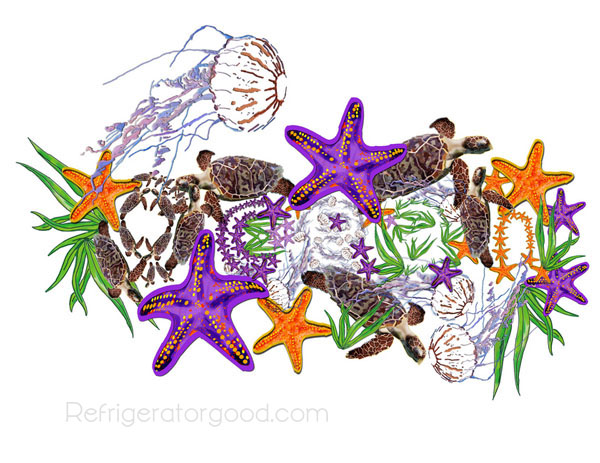
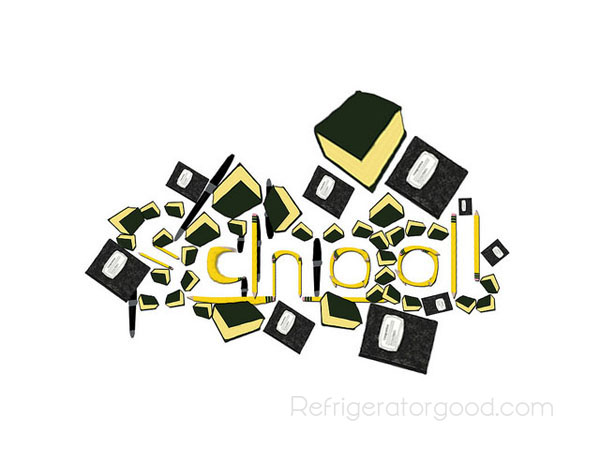
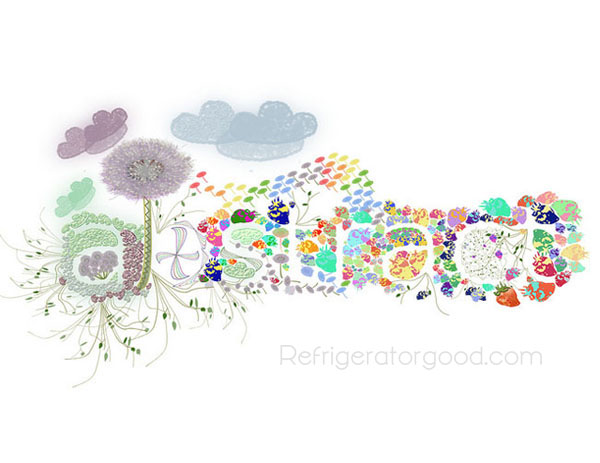
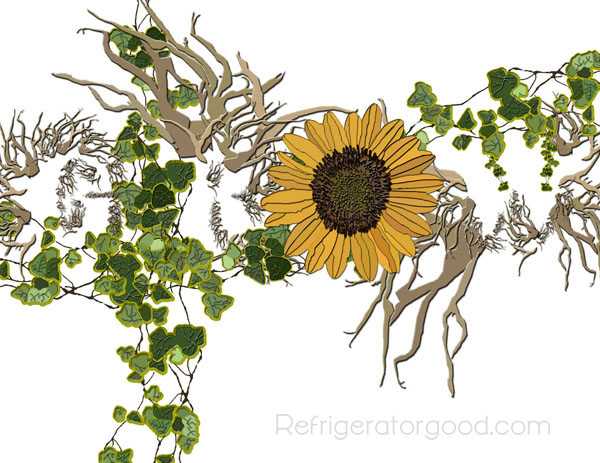
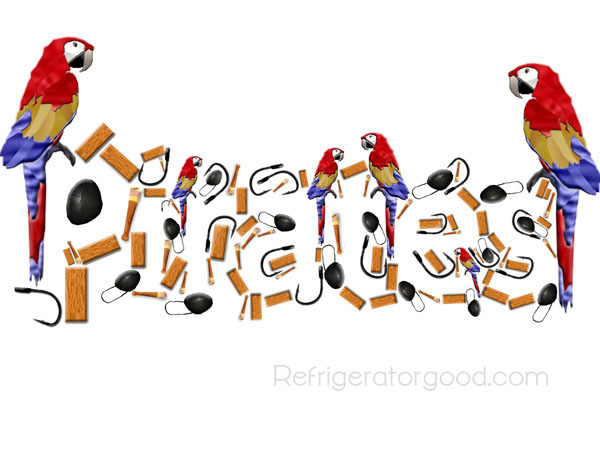
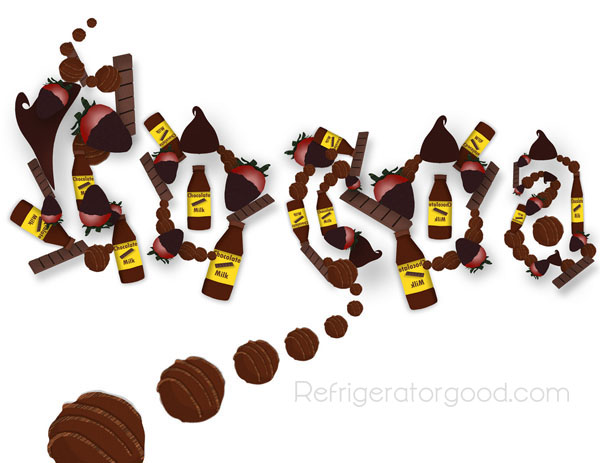
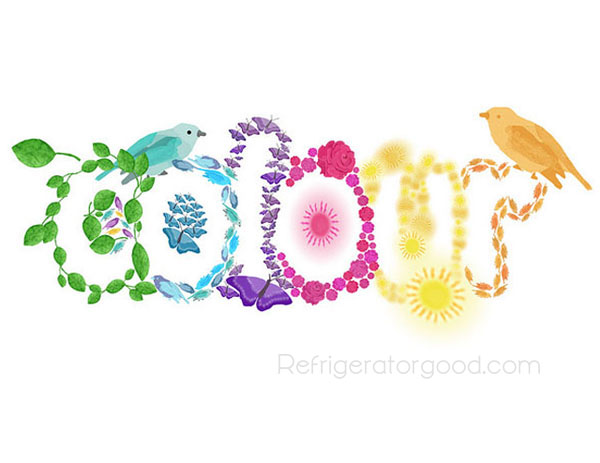
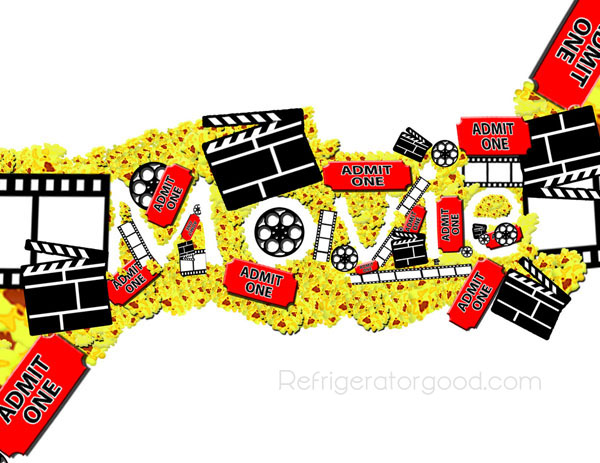
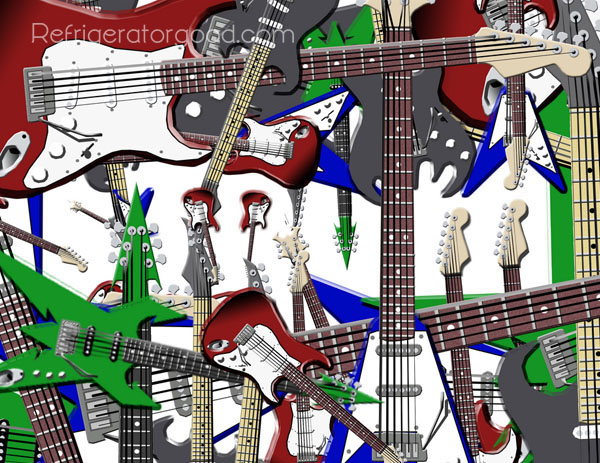
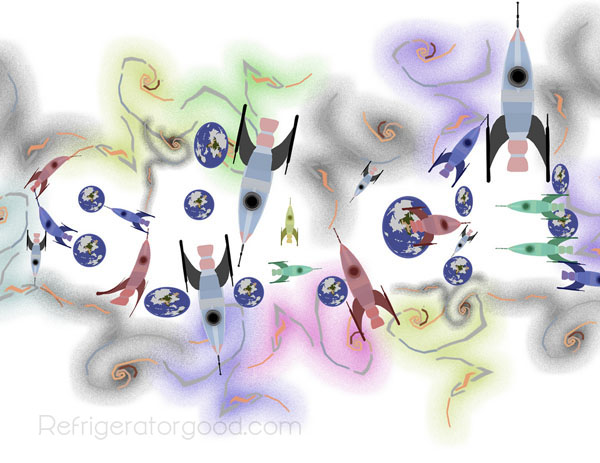
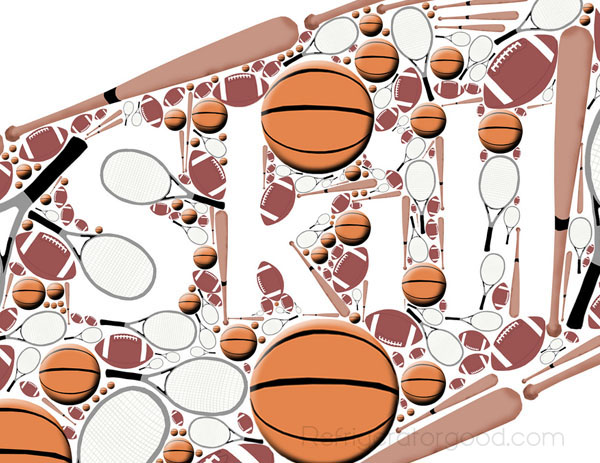
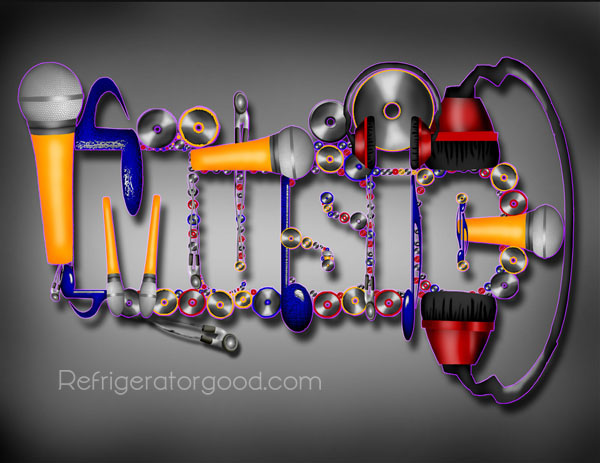
Word Art // Graphic Design Lesson

Medium: Adobe Photoshop
Time: 1.5 Weeks 
Grade: 9-12 
Art Element: TEXTURE, COLOR, FORM, SHAPE
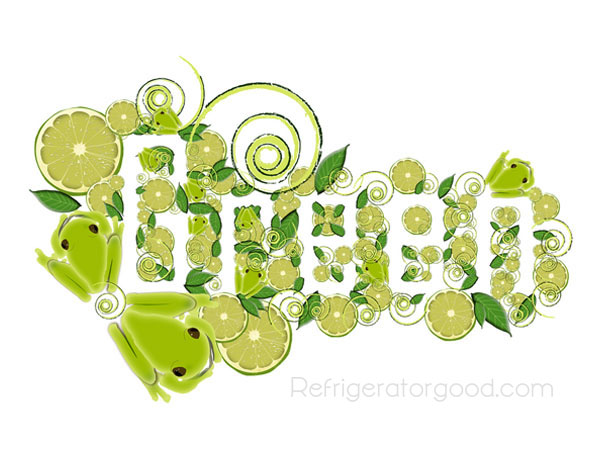
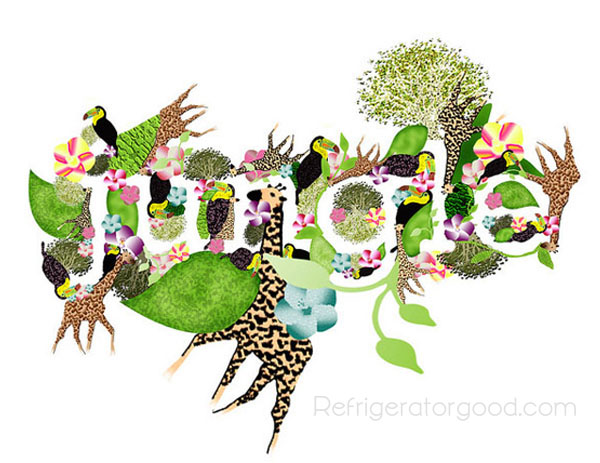
Objective:  Design 8 x 10” word in the negative using 3 original graphics

-Apply advanced layer styles to each  graphic
-Master the use of positive and negative space in Type Illustration

Tool: Brush tool, Polygonal tool, Free transform, Selection Tool, Filtering, Layer Styles
UntitledUntitled


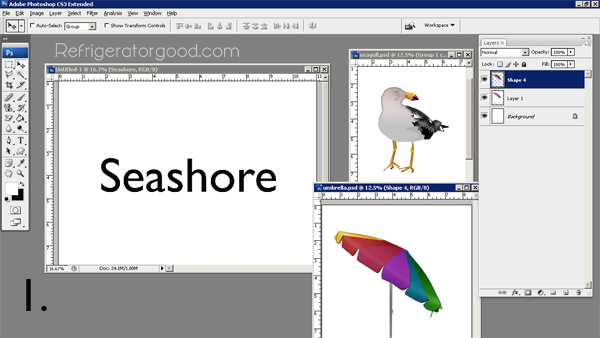
Step 1: Select a your Font and type word
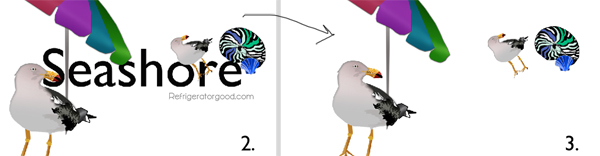
Step 2: Generate graphics for Word, position around TEXT
Step 3: Using the eye in the layers palette, check to see what your layout looks like as you place the           graphics


Untitled Untitled


TIP: Create Graphics with interesting contour shapes

* All artwork generated by the following students grade 9-12: [see below] [Emily A.] [David G.] [Pat D.] [Alyssa G.] [Frankie V.] [Monika G] [Crystal P] [Brittany B.] [Taylor H.] [Kimmee W.] [Emma R.] [Sukhit M.] [Joey D.] [Brandon N.]

 Untitled Untitled Untitled Untitled Untitled Untitled Untitled Untitled Untitled Untitled Untitled Untitled Untitled Untitled


      Teacher: Meredith Hudson
      Class: Graphic Design I
      Grade: 9-12
      State: NJ
      Teachers Artwork: [Website]

Product & Ad Design // Graphic Design Lesson


Medium: Adobe Photoshop
Time: 2-3 Weeks
Grade: 9-12
Art Element: TEXTURE, COLOR, LINE, SHAPE
Objective: Create an original Product and illustrative advertisement
 -Brainstorm ideas for graphic logo and; develop client, product, audience, color palette, label and or logo sketches.
-Identify, and implement the marketing techniques used by graphic designer and art directors,
(who is the target audience? What is the message? What will encourage them to buy the product?
Why is it appealing? How does color affect the consumer?)
-Understand the foundations of Typographic Design, Typeface, letter form anatomy,
character sets and text alignment.
Tool: Brush tool, Polygonal tool, Free transform, Selection Tool, Filtering, Layer Styles


Untitled Untitled

Phase 1: [Step 1, see above]
Step 1: Have students develop idea for Product

Phase 2: [Steps 2-6, see below] 
Step 2: Begin developing and designing Brand Logo 
Step 3: Design Product packaging 
Step 4: Combine Logo and Package designs 
Step 5: Incorporate "ad pitch/slogan" 
Step 6: Design full page advertisement


Untitled Untitled Untitled  Untitled 


* All artwork generated by the following students grade 9-12: [See above & Below]
 [Aryanna A.] [Conner G.] [Craig G.] [David G.] [Emily A.] [Hailey W] [Joy M]
[Kevin L.] [Mark H.] [Mickey B.] [Nina G.] [Pat D.] [Taylor F.] [Taylor H.] [Tess R.] [Tyler S]
[Brooke H.]

Untitled Untitled Untitled Untitled Untitled Untitled Untitled Untitled Untitled Untitled Untitled Untitled Untitled Untitled Untitled

      Teacher: Meredith Hudson
      Class: Graphic Design I
      Grade: 9-12
      State: NJ
      Teachers Artwork: [Website]

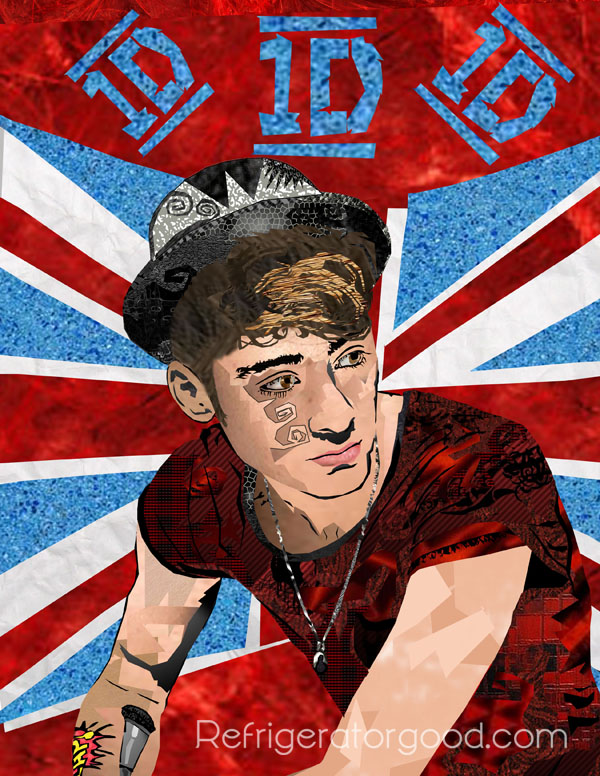
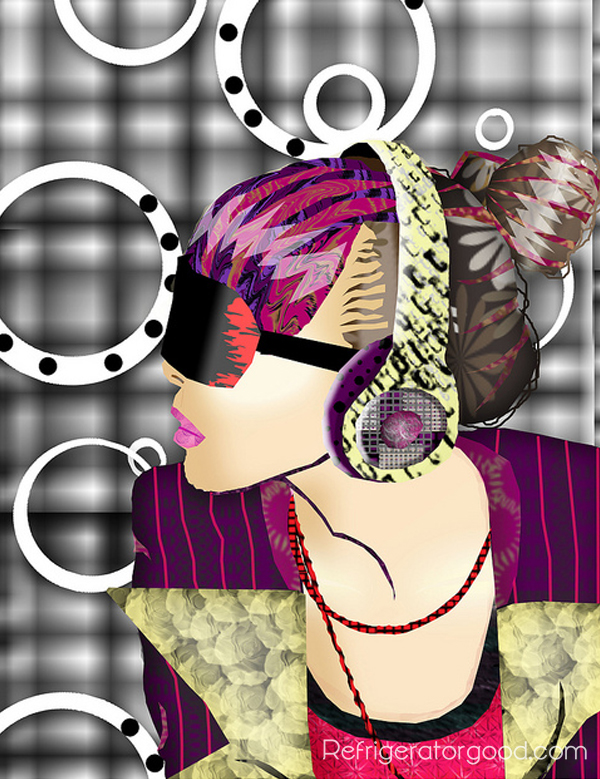
Portraits // Graphic Design Lesson

Medium: Adobe Photoshop
Time: 2-3 Weeks
Grade: 9-12
Art Element: TEXTURE
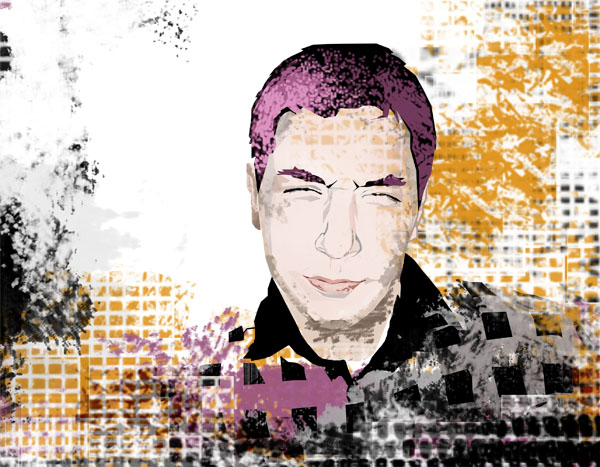
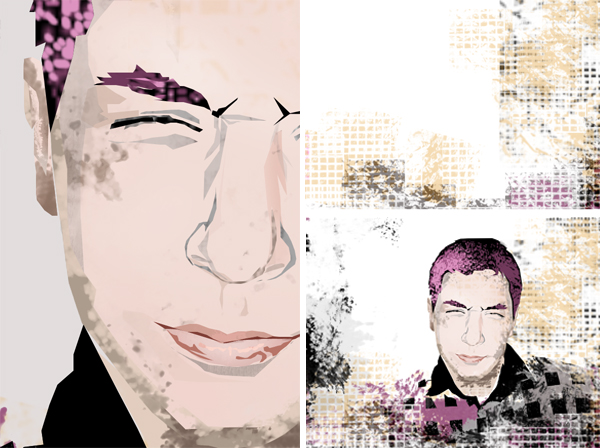
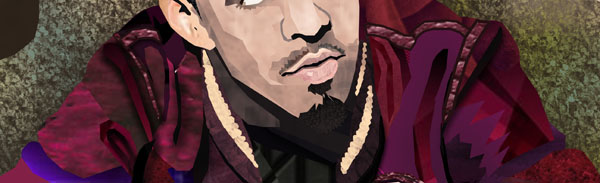
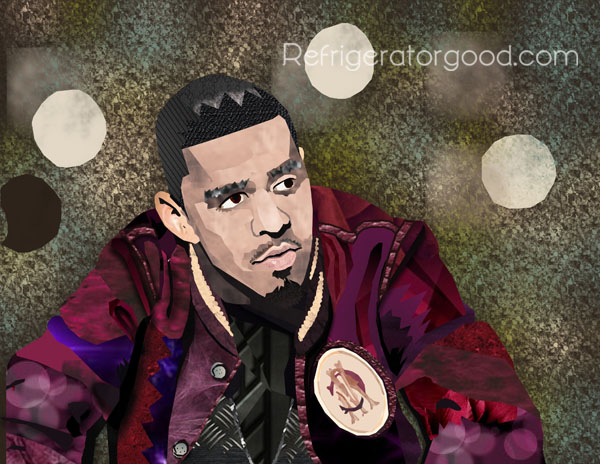
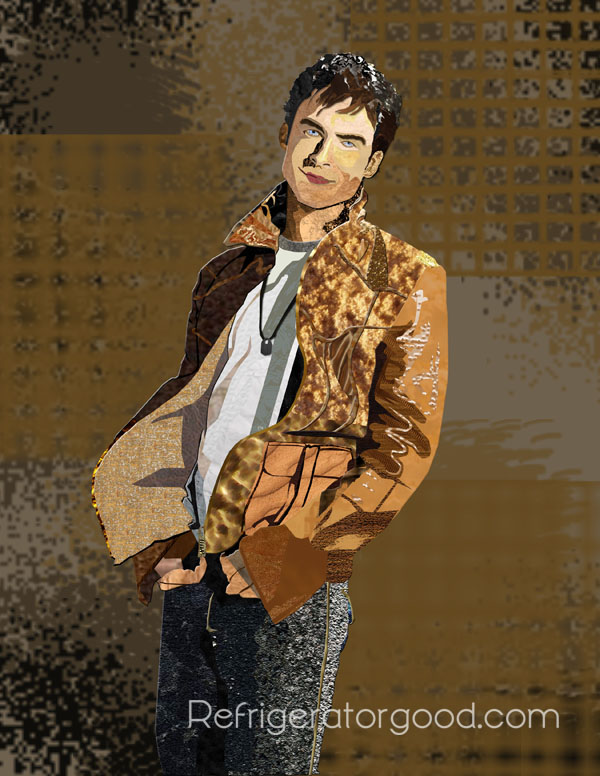
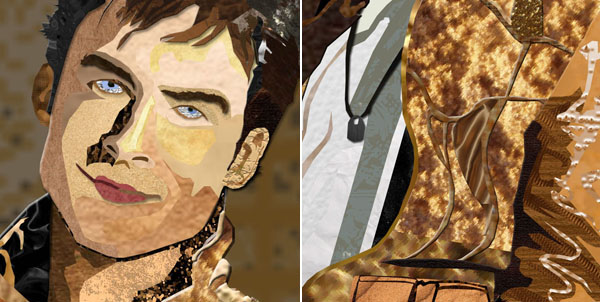
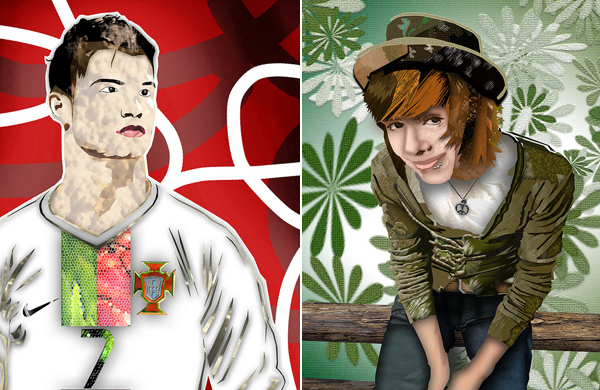
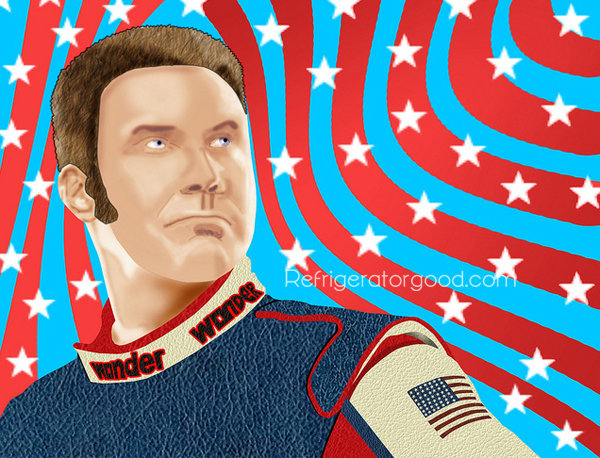
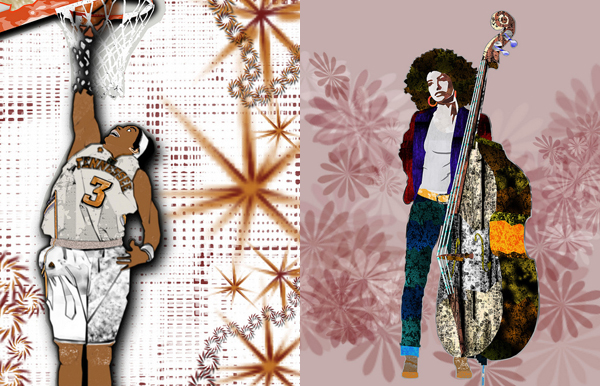
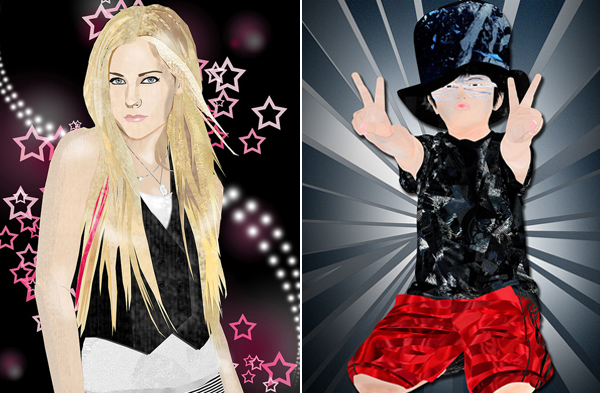
Objective: Create a portrait using texture selection technique

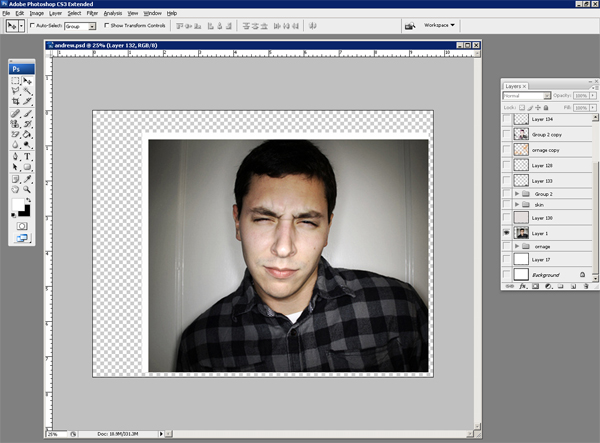
Master layering basics of Photoshop (grouping, merging, deleting layers)
Master the functions of the selection tool, brush tool & copy/Paste functions
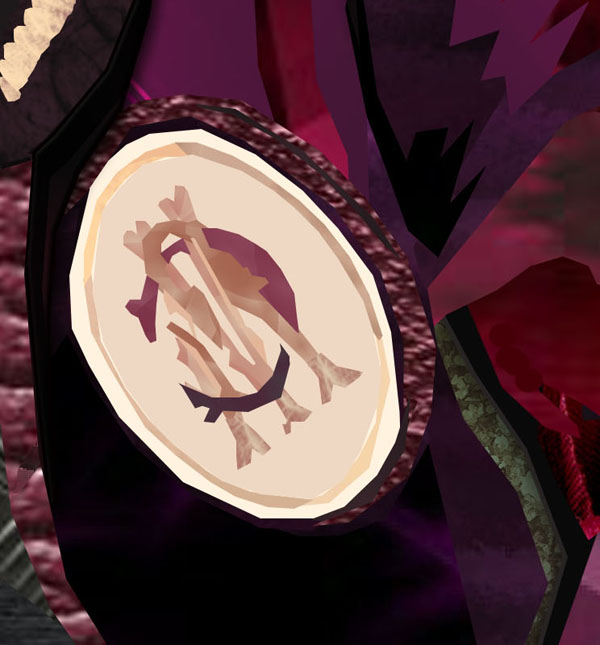
Define the basic terms Implied/Simulated and Real Texture 
Tool: Brush tool, polygonal tool


Untitled
Untitled

Tip: Select a "expressive portrait" to start

Untitled

Part one:
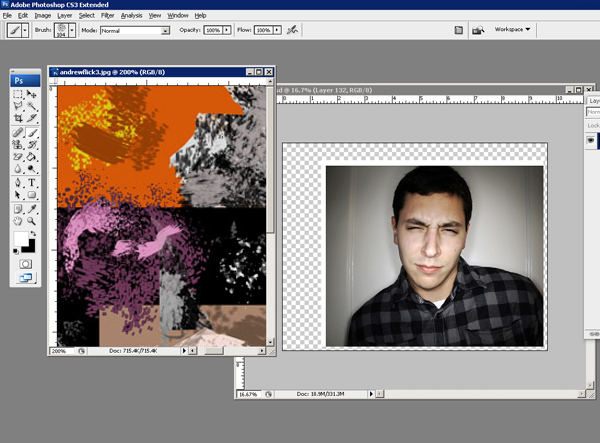
Demo how to drag your image to a new document.
Demo how to create various textures in Photoshop on a Separate File [See left]

Untitled 

Part Two: 
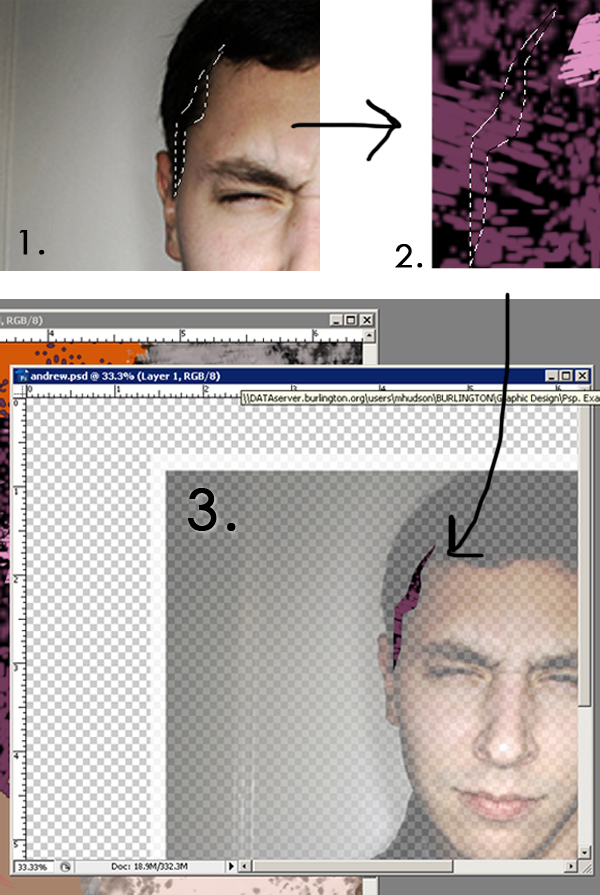
Demo use of Polygonal tool
1. Create a selection on your Portrait file [see below]
2. Drag selection to your new virtual palette
3. Go to Edit Copy {while selection in live..on your virtual palette}
     ->Click back on the title bar of the Portrait file
     Go to Edit paste {your selection should past in the same spot on the Portrait File}

 
Untitled

Tip: Shadows and details can be added subtlety using lighter layer opacities.

Untitled

 * All artwork generated by the following students grade 9-12: [See below]
 [Arielle M.] [Narissa R.] [Mariah C.] [Shatori.] [Mark H.] [Joy] [Alyssa G.]
[Ariana Q.] [Mickey B.]


Untitled Untitled Untitled Untitled Untitled Untitled  Untitled Untitled Untitled Untitled www.refrigeratorgood.blogspot.com 

      Teacher: Meredith Hudson
      Class: Graphic Design I
      Grade: 9-12
      State: NJ
      Teachers Artwork: [Website]

Pin It button on image hover